

FreeProfessional Bookkeeping Workflow Template

Eliminate the chaos at the end of the month. This scalable process map provides a step-by-step framework to standardise transaction entry, reconciliation, and reporting for total financial accuracy.

Building a Predictable Workflow System

Implement a repeatable, step-by-step workflow to lock in total financial control every single month:

Source Document Management: Establish a strict protocol for capturing vendor invoices and expense reports to ensure your audit trail is airtight.

Multi-Phase Reconciliation: Standardise how you match bank feeds and credit card statements to catch variances before they impact your bottom line.

Operational & Tax Readiness: Map out the specific steps for GL adjustments and tax documentation to make year-end filings a non-event.

Internal Control Mechanisms: Implement two-level sign-offs and variance documentation to maintain high standards of financial integrity.

Utilise the "Audit Readiness Checklist" to ensure all supporting schedules are accessible and archived, significantly reducing the time and cost of external reviews.

Master the Art of the Pitch

All the latest insights from WorkflowMAX

Heading 1

Heading 2

Heading 3

Heading 4

Heading 5
Heading 6

Lorem ipsum dolor sit amet, consectetur adipiscing elit, sed do eiusmod tempor incididunt ut labore et dolore magna aliqua. Ut enim ad minim veniam, quis nostrud exercitation ullamco laboris nisi ut aliquip ex ea commodo consequat. Duis aute irure dolor in reprehenderit in voluptate velit esse cillum dolore eu fugiat nulla pariatur.

Block quote

Ordered list

  1. Item 1
  2. Item 2
  3. Item 3

Unordered list

  • Item A
  • Item B
  • Item C

Text link

Bold text

Emphasis

Superscript

Subscript

Heading 1

Heading 2

Heading 3

Heading 4

Heading 5
Heading 6

Lorem ipsum dolor sit amet, consectetur adipiscing elit, sed do eiusmod tempor incididunt ut labore et dolore magna aliqua. Ut enim ad minim veniam, quis nostrud exercitation ullamco laboris nisi ut aliquip ex ea commodo consequat. Duis aute irure dolor in reprehenderit in voluptate velit esse cillum dolore eu fugiat nulla pariatur.

Block quote

Ordered list

  1. Item 1
  2. Item 2
  3. Item 3

Unordered list

  • Item A
  • Item B
  • Item C

Text link

Bold text

Emphasis

Superscript

Subscript

Heading 1

Heading 2

Heading 3

Heading 4

Heading 5
Heading 6

Lorem ipsum dolor sit amet, consectetur adipiscing elit, sed do eiusmod tempor incididunt ut labore et dolore magna aliqua. Ut enim ad minim veniam, quis nostrud exercitation ullamco laboris nisi ut aliquip ex ea commodo consequat. Duis aute irure dolor in reprehenderit in voluptate velit esse cillum dolore eu fugiat nulla pariatur.

Block quote

Ordered list

  1. Item 1
  2. Item 2
  3. Item 3

Unordered list

  • Item A
  • Item B
  • Item C

Text link

Bold text

Emphasis

Superscript

Subscript

Done with the Downloads? Switch to Active Growth.

Our free tools give you the blueprint, but WorkflowMAX provides the engine to automate it. Experience the full power of this proposal template integrated into a live lead-to-job workflow.

Frequently asked questions

Can this workflow be used with QuickBooks or Xero?

While this document itself cannot be directly linked or synced to your accounting software, it serves as an excellent foundational blueprint for what you need to track. You can easily use this process map to manually configure your own workflows and variables within QuickBooks or Xero. However, for a fully optimized, seamlessly integrated experience where your workflows and projects live together, we highly recommend opening an account with WorkflowMAX.

How do I handle multi-currency transactions?

To ensure complete accuracy, multi-currency transactions should be addressed during Phase 1 (Transaction Entry) and verified during Phase 2 (Reconciliation). When entering invoices or expenses, ensure they are recorded using the correct foreign currency and mapped to the appropriate multi-currency accounts in your software. During monthly bank reconciliations, your bookkeeper should run a foreign exchange revaluation to account for fluctuating conversion rates and ensure any realized or unrealized gains/losses are properly recognized in your General Ledger.

Who should be the "Workflow Owner" mentioned in the template?

The Workflow Owner should be the individual or role ultimately responsible for the overall accuracy of your firm's finances and adherence to this specific process. Typically, this is a Senior Accountant, Financial Controller, or your Head of Finance. This person is responsible for executing high-level controls, conducting executive financial reviews, and executing the final hard close and period lock.

Education and training

Still have questions?

Education and training

Which file types can I upload for AI bill extraction?

WorkflowMAX accepts PDF, JPG, JPEG, PNG and HEIC files for manual bill uploads. A file can be up to 5 MB, with a file name of up to 200 characters. Clear, readable documents produce the best results, but every extracted field should still be reviewed against the original.

Can this plan be used for solo practitioners?

Absolutely. It is designed to help solo architects build the systems necessary to hire their first employees or scale their project volume without losing margin.

Does this template include financial forecasting?

It focuses on the operational and strategic pillars of growth; for real-time financial health, we recommend syncing these goals with WorkflowMAX's profitability reporting.

How often should an architecture business plan be updated?

We recommend a major review annually, with quarterly "pulse checks" on your Lead Qualification Criteria to ensure they align with current market conditions.

How does AI bill extraction help with project cost management?

Supplier costs are more useful when they are recorded promptly and connected to the right work. By reducing the time spent entering bills, AI Document Extraction helps teams keep job costs more current. Project managers can then review budgets and profitability using a clearer picture of supplier spending.

What is AI Document Extraction for Bills?

AI Document Extraction is a WorkflowMAX feature that reads a supplier bill and prepares key information in the Create Bill form. It can identify dates, reference numbers, supplier details and costs. Your team checks the results, makes any necessary changes and manually confirms the bill before it is saved.

Who should be the Workflow Owner mentioned in the template?

The Workflow Owner is the individual who holds final accountability for the integrity of the financial data and grants the final approvals. As outlined in the Sign-off and Final Approvals section of this template, this role is typically filled by the CFO or Controller. They are responsible for the Management/Executive Review (Step 4.4) and authorizing the final Hard Close & Lock Period (Step 4.5) to secure the data.

How do I handle multi-currency transactions?

Multi-currency handling should be woven directly into your daily, weekly, and monthly routines:

Phase 1 (Data Integrity): When performing your Software Synchronization Check (Step 1.1), verify that foreign currency exchange rates are automatically updating correctly. Guarantee all foreign bills and invoices are matched to their source documents using the exact transaction-date exchange rate.

Phase 2 (Core Reconciliations): When completing your Bank & Cash Reconciliation (Step 2.1), ensure your foreign currency bank accounts match their respective ledger balances. Any discrepancies caused by currency fluctuations should be cleared out and recognized as realized or unrealized gains/losses before moving to Phase 3.

Can this workflow be used with QuickBooks or Xero?

While this document itself cannot be directly linked or synced to your accounting software, it serves as an excellent foundational blueprint for what you need to track. You can easily use this checklist as a base and add your own specific tracking points inside QuickBooks or Xero. However, for a fully integrated experience where your project data and accounting workflows talk to each other effortlessly, we highly recommend opening an account with WorkflowMAX.

Who should be the "Workflow Owner" mentioned in the template?

The Workflow Owner should be the individual or role ultimately responsible for the overall accuracy of your firm's finances and adherence to this specific process. Typically, this is a Senior Accountant, Financial Controller, or your Head of Finance. This person is responsible for executing high-level controls, conducting executive financial reviews, and executing the final hard close and period lock.

How do I handle multi-currency transactions?

To ensure complete accuracy, multi-currency transactions should be addressed during Phase 1 (Transaction Entry) and verified during Phase 2 (Reconciliation). When entering invoices or expenses, ensure they are recorded using the correct foreign currency and mapped to the appropriate multi-currency accounts in your software. During monthly bank reconciliations, your bookkeeper should run a foreign exchange revaluation to account for fluctuating conversion rates and ensure any realized or unrealized gains/losses are properly recognized in your General Ledger.

Can this workflow be used with QuickBooks or Xero?

While this document itself cannot be directly linked or synced to your accounting software, it serves as an excellent foundational blueprint for what you need to track. You can easily use this process map to manually configure your own workflows and variables within QuickBooks or Xero. However, for a fully optimized, seamlessly integrated experience where your workflows and projects live together, we highly recommend opening an account with WorkflowMAX.

How do I handle budget changes during the project?

While a creative brief establishes the initial budget parameters to guide the creative direction, active budget adjustments should be managed through your change-order process or invoice tracker. If the budget shifts significantly mid-project, we recommend updating the budget section within this brief and re-sharing it with the team to ensure the creative execution shifts to align with the new financial scope.

Does this template cover digital and print assets?

Yes, it covers both perfectly. The template is designed with a highly flexible asset requirements section. Whether your project involves digital deliverables (like social media graphics, UI designs, and paid ads) or print materials (like packaging, brochures, and signage), you can easily specify dimensions, file formats, and production specs for any medium.

Who should be responsible for filling out the creative brief?

The creative brief is most effective when it’s a collaborative effort, but it is typically driven by the Project Manager, Account Manager, or the Lead Creative in close consultation with the client. The client provides the core business objectives, audience insights, and project parameters, while the agency team refines that information into clear, actionable direction for the designers, writers, and creators executing the work.

Is this template legally binding?

Important Disclaimer: This template is provided as a foundational drafting tool and does not constitute formal legal advice.

While the template is structured to include standard contract provisions, simply downloading or reading the template does not make it legally binding. To make it a legally enforceable contract, you must fully customize it to your specific situation, populate all relevant details, and have it properly signed and executed by authorized representatives of both your agency and your client. Because laws vary heavily by region and industry, we strongly recommend having a qualified legal professional review your final draft before sending it out for signature.

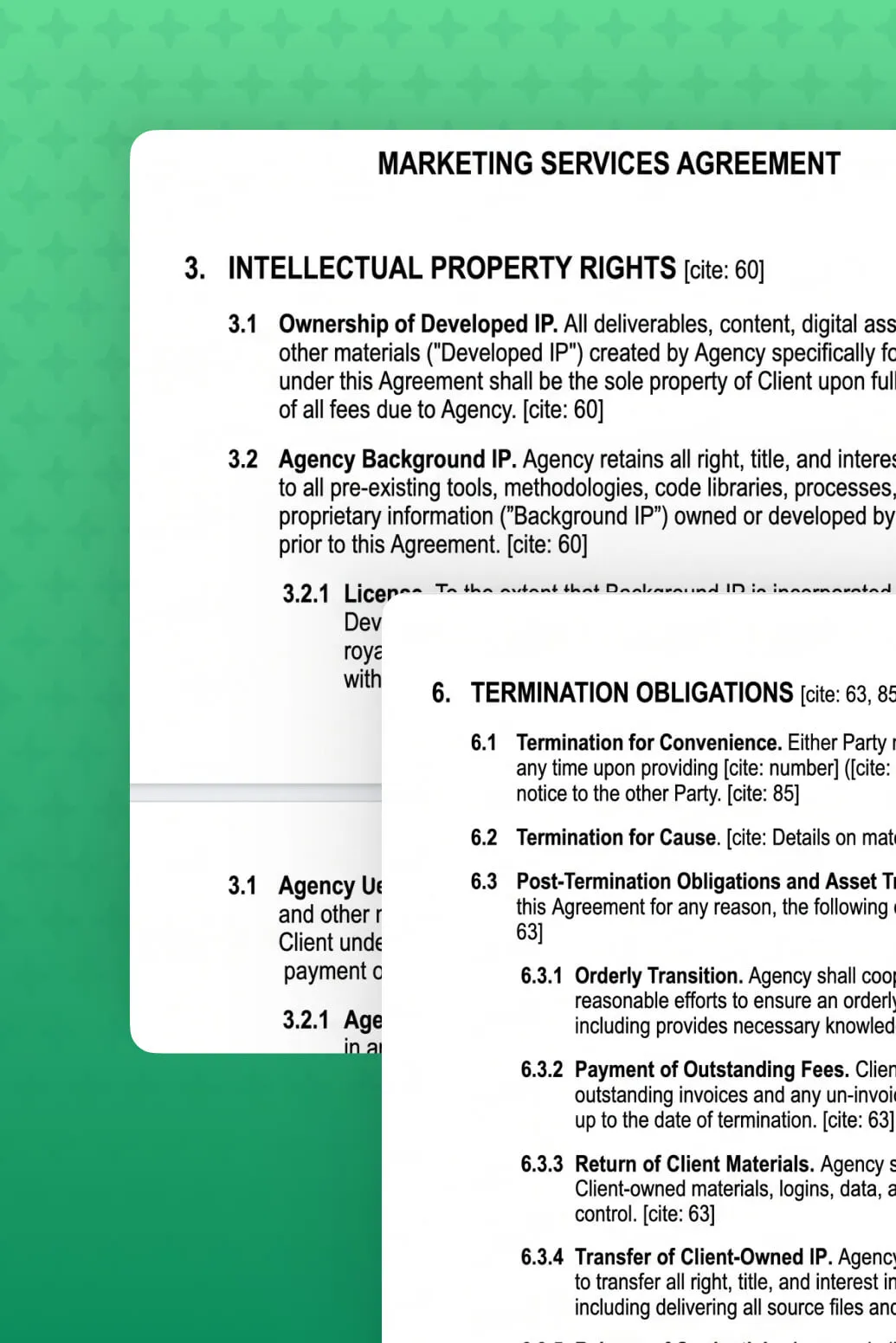
Can I edit the notice period for termination?

Absolutely. The entire template is fully editable, allowing you to easily adjust the termination clauses, notice periods (e.g., 30, 60, or 90 days), and any specific exit conditions to align perfectly with your agency's standard operating procedures.

Does this contract cover SEO and Paid Search services?

Yes. The template features a comprehensive Scope of Work (SOW) section that explicitly outlines various service types, including SEO and Paid Search. Because the document is fully customizable, you can easily add, remove, or modify these sections to be as specific as your agency's service packages require.

Is there a template for requesting more money for scope creep?

While we don't have a standalone template explicitly dedicated to scope creep, you can easily adapt a couple of our other templates to fit this situation. We recommend modifying either the Addressing a Major Roadblock or Delay template or the Requesting Payment / Invoice Follow-up template to outline the changes in project scope and request the necessary budget adjustments.

Can I customize these for my specific firm's voice?

Absolutely. In fact, we highly encourage it! These templates are designed to serve as a strong foundational framework. You can easily tweak the phrasing, adjust the level of formality, and inject your specific firm's branding, terminology, and unique brand voice to ensure every communication feels authentic to your team.

Are these templates compatible with Outlook and Gmail?

Yes, completely. These templates are delivered as clean, fully copy-and-pasteable text, making them 100% compatible with Outlook, Gmail, and any other email platform or CRM system you use.

Can I include external consultant fees?

Yes, you can easily account for outside help. The template includes designated sections for Subcontractor Service, Subcontractor Cost ($), and Other Expenses (such as permits, travel, or materials). If you have specific vendor types or unique consulting fees, you can quickly add custom rows or columns to track them.

Is this template suitable for fixed-fee projects?

Absolutely. While the template easily handles hourly or variable rates, it is perfectly suited for fixed-fee projects as well. You can simply input your total flat-rate project cost into the main pricing section and utilize the milestone or phase breakdowns to show your client exactly when payments are due throughout the project lifecycle.

How do I handle revisions to a quote?

This template is built specifically to handle the iterative nature of quoting. It includes dedicated sections for Revision Numbers, Payment Terms, Acceptance Check, and Notes/Assumptions to help you seamlessly document updates. Because the template is fully customizable, you can also add your own specific tracking sections to match your exact revision workflow.

Can this be converted into a digital invoice?

While you can certainly use the data structure here to help format your own digital invoices, this specific template is designed to function primarily as an invoice tracker rather than a direct invoicing tool.

How do I handle reimbursable expenses?

Since this template is fully editable, you can easily add a dedicated section for trackable, reimbursable expenses if your workflow requires it. Additionally, there is a built-in notes section where you can log key details and reference info for each individual invoice.

Can I use this for tax-exempt government projects?

Yes! Because this template is fully customizable, you can easily adjust it to include any specific tax treatments or exemptions your project requires. We highly recommend partnering with your accountant or finance team to ensure it is tailored perfectly to meet compliance standards for government contracts.

Can I share this timeline directly with clients?

Absolutely. The template is designed with clean, professional layouts that are perfect for high-level client presentations and progress updates. Sharing it gives your clients clear visibility into upcoming milestones and dependencies. When you're ready to scale past manual updates, WorkflowMAX allows you to generate real-time, professional client reports with a single click, keeping everyone in the loop effortlessly.

How are "Risk Factors" used in this schedule?

The "Risk Factors" column serves as an early-warning system for your project health. It allows you to flag tasks with high complexity, tight dependencies, or unpredictable external variables (like council approvals or client delays). By identifying these bottlenecks directly on your timeline, you can allocate contingency time before it impacts your deadline, though for real-time risk alerts and automated milestone tracking, moving that data into WorkflowMAX is the ultimate way to stay ahead of scope creep.

Does this template account for RIBA or AIA stages?

Yes! The timeline is built to be completely framework-agnostic, meaning it can easily adapt to both RIBA (Stages 0–7) and AIA (Schematic Design through Construction Administration) workflows. Because the spreadsheet is fully editable, you can quickly map the phases to whichever regulatory or professional standard your firm uses for project delivery.

How does a BEP impact project profitability?

A well-structured BEP directly protects your bottom line by eliminating the hidden costs of project confusion. By clearly defining data standards, communication protocols, and delivery schedules from the start, you drastically reduce costly errors, rework, and missed deadlines. It turns chaotic collaboration into a streamlined, highly efficient machine, and when you pair a solid BEP with WorkflowMAX to monitor your real-time resource allocation and project costs, you gain total visibility over your profitability.

At what stage should the BEP be finalized

A BEP is a living document that evolves in stages. A pre-contract BEP should be outlined during the tender or bidding phase to demonstrate your team's capability. Once the project is awarded, the finalized, post-contract BEP must be locked in before any actual project design or modeling begins. Securing alignment early ensures everyone is working toward the same standards from day one, and once your project scope is set, tracking those milestones against your actual time and budget is seamlessly handled inside WorkflowMAX.

Is this BEP template suitable for international projects

Absolutely. This template is built on globally recognized industry standards, making it highly adaptable for international collaborations. It provides a universal framework for defining roles, data sharing protocols, and delivery milestones. While the foundational principles remain consistent worldwide, you can easily customize the local regulatory, units of measurement, or regional compliance details directly within the editable file.

Does it include a section for risk management?

Yes! We’ve included a dedicated section to help you identify, track, and mitigate potential project bottlenecks early on. It’s built to give you baseline visibility into your project health, though for advanced, real-time risk mitigation and automated team alerts, moving your workflow into WorkflowMAX is the ultimate way to stay ahead of the curve.

Can I import this into my WorkflowMAX Custom Print Templates?

While these downloadable .xls sheets serve as a great foundational tool for your internal process, they aren't directly uploadable as custom print templates. However, they use the exact same logic and data structures! When you are ready to use WorkflowMAX, you can easily use these layouts as a visual blueprint to design stunning, automated Custom Print Templates directly inside the platform.

How do I customize this for different project types?

Since these templates are built as fully editable spreadsheet files, you can easily adapt them by renaming phases, tweaking the scope of work lines, or adjusting formulas to match your specific industry tracking. They are designed to be flexible frameworks that fit your unique project structures right out of the box.

Why don't purchase orders flow to QuickBooks?

Purchase orders are commitments, not financial transactions. When you receipt a PO in WorkflowMAX, the resulting cost flows to QuickBooks as a payable. This keeps your accounting ledger clean and accurate.

Can I control which QuickBooks accounts invoices are coded to?

Yes. Map account codes at the general level, by job category, or down to individual tasks and costs. WorkflowMAX applies the correct codes when you approve an invoice, so line items land in the right revenue accounts without manual intervention.

Do I send invoices from WorkflowMAX or QuickBooks?

Most firms send from WorkflowMAX, since it gives you detailed timesheet breakdowns, branded templates and phase-level line items, then lets the accounting data flow to QuickBooks. You can also send from QuickBooks if that suits your workflow.

Are contacts really kept in sync both ways?

Yes. Import your QuickBooks contacts to get set up quickly, then they stay in sync bi-directionally. Update a client in either platform and the change is reflected in the other, so you are not maintaining two address books.

Is this suitable for US firms running QuickBooks?

Yes. For firms using QuickBooks Online as their main accounting platform, WorkflowMAX gives you the same job-to-accounting flow that Xero users get: invoices, account-code mapping and payment tracking. WorkflowMAX handles job management, time tracking and billing; QuickBooks handles the books.

How do I actually see whether a job is profitable?

As time, costs and supplier invoices are recorded against a job in WorkflowMAX, your job profitability reporting updates, and the synced QuickBooks data keeps the financial picture accurate. You can see how each job is tracking rather than waiting for the end-of-month reconciliation.

What happens to our historical jobs and invoices?

You choose. Most firms migrate active and recently closed jobs, then keep the old system in read-only for a billing cycle so historical records stay reachable. Your partner will reconcile imported data against your existing reports before go-live, so the numbers you've been reporting on don't quietly change. If you'd rather bring everything across, that's a scope conversation on the discovery call.

Do I have to use an implementation partner?

No. WorkflowMAX includes import tools for clients, suppliers, jobs, staff and time entries, and most teams import their core data during the free trial so they can test the platform with their own information. Partners exist for complex configurations, custom integrations and larger rollouts, not as a gate. If you're on the Advanced plan with 25+ users on annual billing, guided onboarding from the WorkflowMAX team is included at no extra cost.

How long does a Deltek migration realistically take?

Longer than our other switch paths, because the data structure is richer. Plan on four to six weeks rather than three to four, with most of the extra time spent deciding what to migrate versus archive.

Is WorkflowMAX going to feel like a downgrade?

On breadth, it's deliberately narrower. On the things you use daily, quoting, job costing, time capture, invoicing, profitability reporting, it's faster to run and your team can change it without raising a ticket. Firms usually describe the trade as losing modules they'd never configured and gaining a system they can actually administer themselves.

We have years of project history in Deltek. Are we losing it?

No. The usual approach is to migrate active and recent projects into WorkflowMAX and retain Deltek in read-only as your historical archive for as long as you need it. Your partner will define the cutoff on the discovery call, typically the last two to three financial years of active work.

How does approved leave affect timesheets?

It automatically creates a non-billable timesheet entry for each day. If the request is cancelled, those entries are removed.

Can I set up different leave types?

Yes, admins can create types like annual or sick leave, each with its own colour and mapped job and task.

How do staff request time off?

On the Time off page, they create a request with a leave type, dates and hours per day. It's sent to the approver for review.

Which plans include it?

Time off is available on the Pro and Advanced plans, or as part of a free 14-day trial.

What is leave management in WorkflowMAX?

It lets staff request time off and approvers approve, reject or cancel it. Approved leave automatically updates Capacity Planning and creates a timesheet entry.

Can I use this across multiple client accounts?

Yes. Firms managing multiple clients or entities can configure more than one WorkflowMAX account.

Does it work on mobile?

Yes. Because MCP connects through your AI assistant, you can use it wherever you have access to Claude - including on mobile. It works alongside WorkflowMAX so whichever way is most convenient, your live data is within reach.

What if the AI makes a mistake? Could it create the wrong invoice or update the wrong job?

The AI acts on your instructions, so it won't take action without a clear prompt from you. As with any tool, we recommend reviewing anything created or updated through MCP before sending it to a client. Your existing approval workflows in WorkflowMAX still apply.

Which AI assistants work with WorkflowMAX?

WorkflowMAX's MCP integration works with any AI assistant that supports the Model Context Protocol - including Claude, and other MCP-compatible tools. This means you can connect your WorkflowMAX account to whichever AI assistant fits your team's workflow and start taking action on your live project data straight away.

Can I use AI to manage my projects in WorkflowMAX?

Yes. Once connected, AI assistants like Claude can create and update jobs, draft quotes and invoices, check staff capacity, review financial summaries and more - all through conversation. It's designed for professional services firms that want to spend less time on admin and more time on billable work.

What is WorkflowMAX's AI integration and how does it work?

WorkflowMAX's MCP integration uses the Model Context Protocol - a standard that lets AI assistants like Claude connect directly to your WorkflowMAX account. It gives you a second way to access your live data and take action on it: through natural conversation with your AI assistant, alongside WorkflowMAX's own interface. Ask questions, create and update records, and manage your team - all working against the same live data you already rely on.

What if I change a supplier's currency?

You can update supplier currency at any time. New purchase orders will use the updated currency. Existing POs remain in their original currency.

Can I use multi-currency for quotes/invoices/jobs?

Multi-currency for purchase orders and bills is just the beginning. We're actively building multi-currency support across jobs, quotes, and invoices – bringing end-to-end foreign currency handling to your entire project lifecycle.

Does this work with Xero integration?

Yes. If you're using Xero integration, your base currency matches your Xero account, and all foreign currency transactions sync seamlessly.

Can I manually adjust exchange rates?

Yes. While WorkflowMAX pulls current rates automatically, you can override them on any purchase order.

What currencies are supported?

WorkflowMAX supports all major global currencies. Exchange rates are pulled from live market data.

Can I include attachments with the quote?

Yes. Customers can view the quote documents and attached files as part of the eQuote experience.

Can customers choose optional items?

Yes. eQuote supports optional items so customers can select what they want included.

Can customers accept with comments?

Yes. Customers can add optional comments when they accept or decline.

Is this an e-signature replacement?

Online Quote Acceptance (eQuote) is designed for electronic quote acceptance within WorkflowMAX. If your process requires a formal signature workflow, you may still need an e-signature tool — but many teams will be able to streamline acceptance without one.

Is Sales Pipeline available on all plans?

Sales Pipeline is an add on for legacy plans (Standard / Premium), and included for Pro and Advanced plans.

Do metrics update when I filter the board?

Yes. Metrics update based on the filters you apply, helping you focus on specific pipelines, owners, or lead segments.

Can we create our own stages?

Yes. You can create as many lead statuses as you need, and update them at any time.

How is this different from Job Manager Kanban?

Pipeline for Lead Manager is built specifically for sales opportunities (leads). Job Manager Kanban is for delivery work (jobs). You can use both, depending on where your team is in the lifecycle.

How do I enable Scheduled Reporting?

Scheduled Reporting is available for Advanced plan subscribers. Contact our support team to enable the feature, or start your free 14-day trial to test it out.

Can I edit or pause a scheduled report?

Yes. You can edit schedules, add or remove recipients, or disable any scheduled report at any time from the centralised management view.

How long are the download links valid?

For security purposes, download links expire after three days. Recipients should download their reports within this timeframe.

What file format are the reports delivered in?

Reports are currently delivered as CSV files, which can be opened in Excel, Google Sheets, or any spreadsheet application.

Can I send reports to clients or external contacts?

Currently, scheduled reports can only be sent to internal team members and staff within your WorkflowMAX account. External recipient support is planned for a future update.

Which reports can I schedule?

You can schedule any WorkflowMAX report with your preferred filters applied, including job reports, timesheet reports, and profitability reports.

Does Advanced WIP replace WIP reports?

Advanced WIP adds an interactive job-level view and ledger. Reports may still be useful for cross-job analysis, but Advanced WIP reduces the need to rely on static reports for day-to-day WIP understanding and action.

What bulk actions are available on WIP ledger entries?

You can apply bulk actions to ledger entries, including Invoice, Set as Billable / Non‑Billable, and Write off.

Can I export WIP details?

Yes. You can export the point-in-time WIP view (including the underlying ledger) to CSV.

Can I view WIP “as at” a past date?

Yes. Use the As at date selector to reconstruct WIP at a historical point in time, including the table view and CSV export.

What does Advanced WIP show on a job?

Advanced WIP shows a breakdown of Time/Costs Entered, WIP Invoiced, WIP Written Off, and the resulting Current WIP Balance, plus a ledger of the entries that make up that balance.

What is Work In Progress (WIP) in project-based businesses?

WIP (work in progress) is the value of time and costs that have been incurred on a job but not yet invoiced (or otherwise resolved), helping you understand profitability and revenue-in-progress.

Where do I find it?

Open any job and select the new WIP tab.

Which plans include Advanced WIP?

Advanced WIP is included on Advanced plans. Standard/Premium customers can trial it free for 14 days.

Does Advanced include dedicated account management and onboarding support?

Advanced includes access to a dedicated account manager, guided onboarding, and quarterly business reviews for annual subscribers with 25 or more users. If your team is below that threshold or on a monthly subscription, you'll still have access to priority support.

What countries and currencies are supported?

WorkflowMAX is available worldwide. Pricing is available in AUD, NZD, GBP, and USD.

Can I change plans after signing up?

Yes. You can upgrade or downgrade your plan at any time from your billing settings. Upgrades take effect immediately, and downgrades apply from your next billing period. Keep in mind each plan has a minimum user count - Pro starts at 5 users and Advanced at 10.

Is Lead Manager included in my plan?

Leads is included in Pro and Advanced at no extra cost. It isn't part of Essentials - if you're managing a pipeline, Pro is the place to start.

How does Advanced pricing work?

Advanced is priced at a flat rate per user, per month, for teams from 10 users. Like Essentials and Pro, it's a single per-user rate at any team size - there are no price brackets. Advanced adds capacity planning, individual WIP ledger management, AI-powered reporting and calendar sync. Teams of 25 or more on an annual subscription also get a dedicated account manager, guided onboarding and a sandbox account.

What happens when my team grows and I need to add more users?

Your subscription doesn't update automatically. To add users, first update your user count in your billing settings, then add the new users to your account. Every user is charged at the same flat rate for your plan, so there are no price brackets to move between. If you're on Essentials and grow beyond 25 users, you'll need to move to Pro or Advanced. Admins can manage all of this from billing settings.

Are there any setup fees or contracts?

No setup fees and no lock-in contracts. You can cancel at any time.

Is there a free trial?

Yes. All plans include a 14-day free trial with no credit card required. You get full access to the features on your chosen plan so you can test with real data before committing.

Which plan is right for my team?

Essentials suits small teams of 3–25 who need job management end to end without the extras. Pro suits growing teams from 5 users who are tracking leads, customising reports and branding their client-facing documents. Advanced suits larger or more complex operations from 10 users that need capacity planning, WIP control and AI-powered reporting. If you're not sure, start a free trial - you can upgrade at any time.

What's the difference between Essentials, Pro and Advanced?

Essentials covers the core platform - quoting, jobs, scheduling, timesheets, invoicing, purchase orders and Xero/QuickBooks integration.

Pro adds everything in Essentials plus leads, quote variations, custom reporting, branded document templates, and more invoicing, purchasing and integration options.

Advanced adds everything in Pro plus capacity planning, individual WIP ledger management, automated and AI-powered reporting, and calendar sync.

How does WorkflowMAX pricing work?

WorkflowMAX is priced per user, per month, with a flat rate on every plan - no user bands. For monthly pricing, Essentials is AUD 12.22 per user (3–25 users), Pro is AUD 22 per user (from 5 users) and Advanced is AUD 37.78 per user (from 10 users). Pay monthly, or save 5% paying quarterly and 10% paying annually. Pricing varies by currency depending on your region.

Can I change my subscription at any time?

You sure can! You can switch between Essentials and Pro by going to your subscriptions tab in your account. We pride ourselves on our easy monthly plans – no setup fees and no hidden costs. No obligation, no contracts. You can also downgrade or cancel at any time.

Can I trial WorkflowMAX Premium?

All WorkflowMAX trials include Premium and Lead manager features for you to try out.

WorkflowMAX Premium sounds great, but does it cost extra?

Yes, WorkflowMAX Premium is an optional upgrade from your standard subscription plan. See our pricing here.

Which web browsers does WorkflowMAX support?

WorkflowMAX supports modern versions of all major web browsers, including Google Chrome, Microsoft Edge, Mozilla Firefox and Safari. For the best experience - particularly with reporting and complex workflows - we recommend keeping your browser up to date.