What changes for your team

See your whole team's workload at a glance

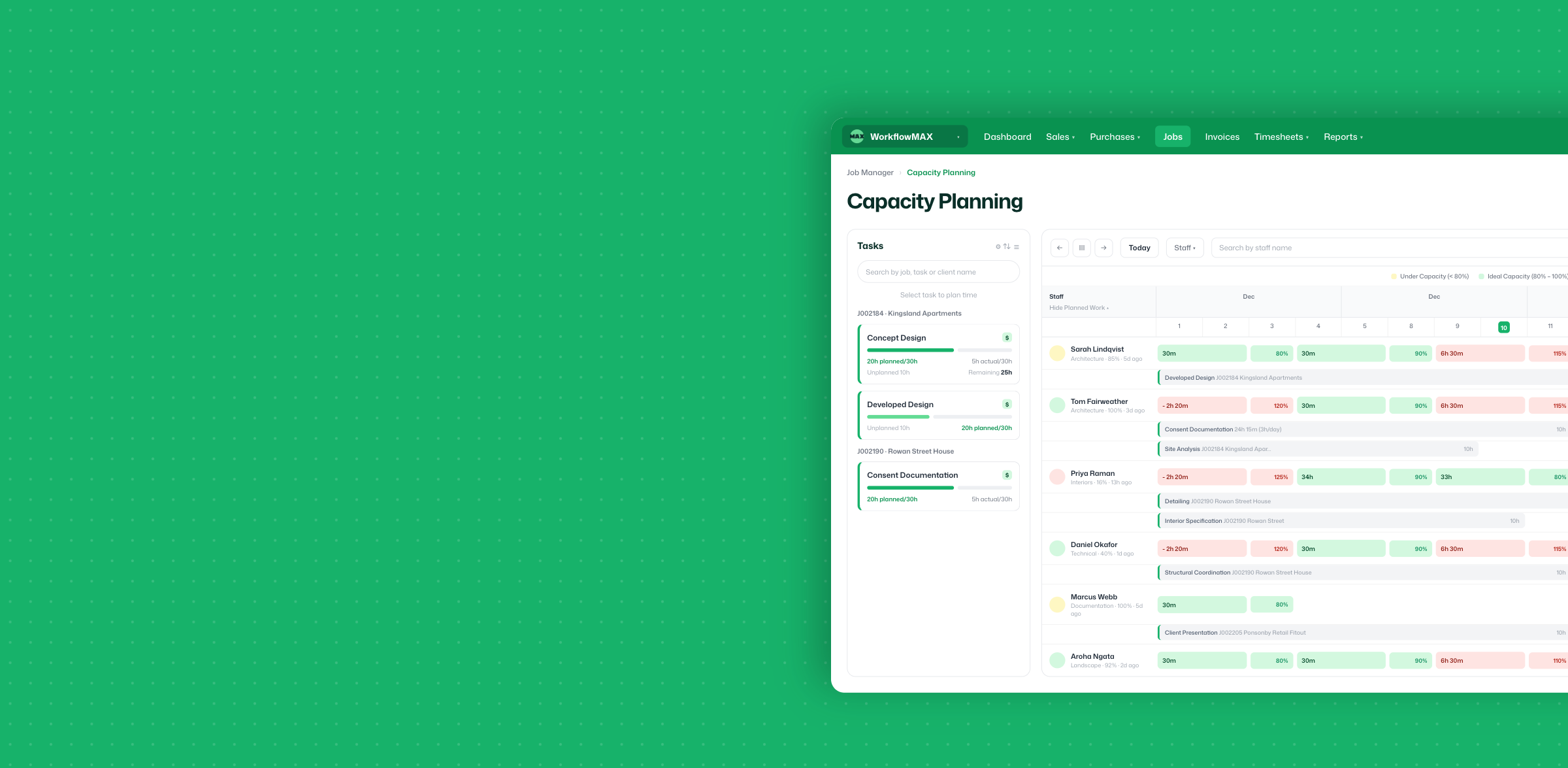
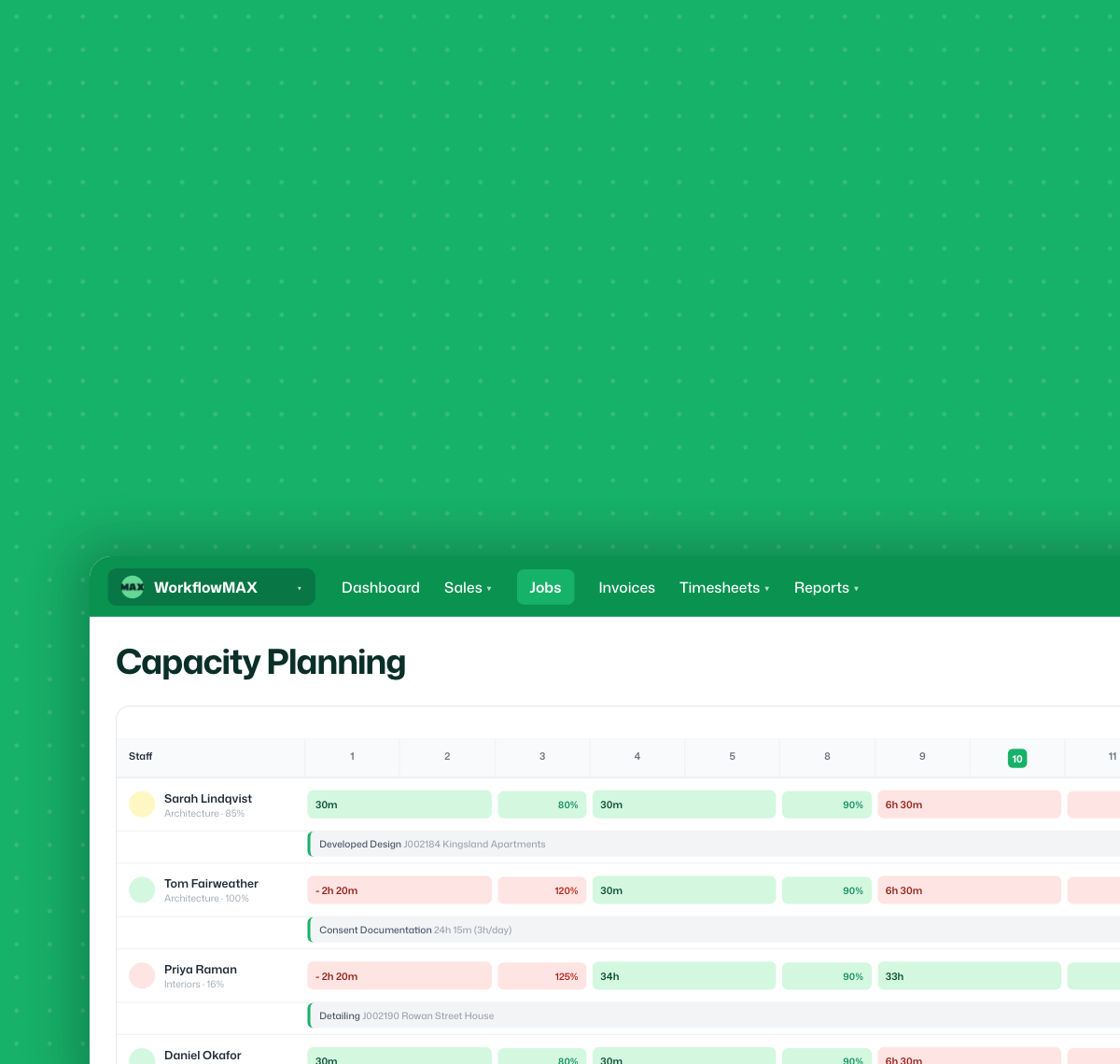
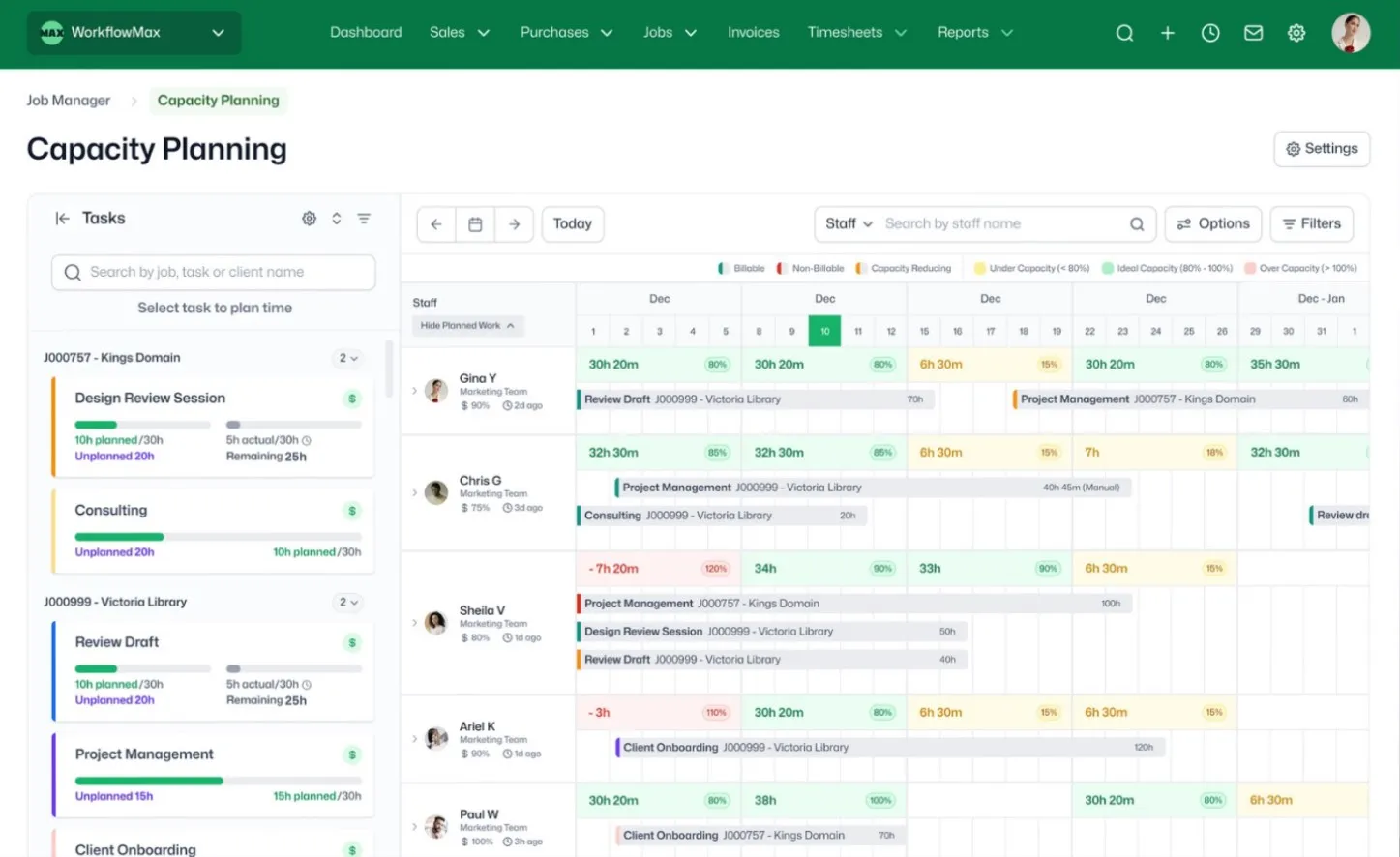
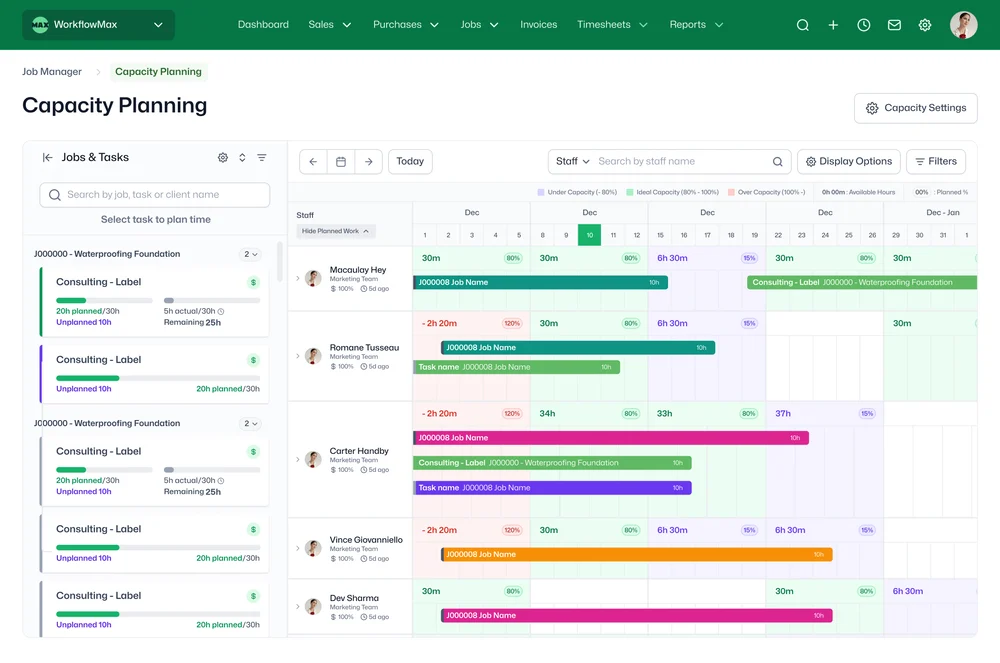
A colour-coded weekly timeline shows every staff member's capacity – yellow for under-utilised, green for ideal, red for overloaded. Spot problems before they happen.

Drag and drop to assign work

Drag a task onto someone's schedule. Resize it, move it, reassign it – in seconds. No clicking through individual jobs one at a time.

Know what's planned – and what isn't

Unassigned tasks surface automatically, so nothing slips through. If it's not on someone's schedule, you'll see it.

Real-time capacity updates

Every change you make – dragging, resizing, reassigning – updates the capacity view instantly. See the impact before you commit.

Flexible scheduling

Spread hours across a week or load them onto specific days. Start, pause, and restart – because real projects don't run in straight lines.

Handle multiple jobs per person

When someone's across three jobs at once, you'll see all three – clearly separated, no overlap, no clutter.

Capacity Planning_Highlight
Capacity Planning_specify details

What's calculated for you

WorkflowMAX handles the numbers automatically so you can focus on planning:

  • Remaining hours – estimated time minus planned time, so you always know what's left to assign
  • Capacity % – planned hours as a percentage of each person's configured working hours
  • Under- and over-allocation – flagged clearly so you can see at a glance who has room and who's stretched too thin
  • Actual time logged – see how much time has already been recorded against each job, so you can compare planned vs actual as work progresses

Capacity thresholds are configurable – set your own percentages for what counts as under, ideal, or over for your business.

Built for professional services

Whether you're running a team of 10 or 50, Capacity Planning gives you the visibility to answer the question that matters most before taking on new work: do we actually have the capacity?

It's designed for firms where staff are spread across multiple jobs at once – and where one double-booking can throw off an entire client delivery.

And because Capacity Planning lives inside the same system where you quote, track time, cost jobs, and invoice, every planning decision connects directly to profitability. No exporting. No reconciling across tools. One system from quote to cash – that's the WorkflowMAX Job Profitability OS.

approval
Capacity Planning_default

Make it yours

Customise your colour scheme

Choose your own colours for the capacity timeline, or let WorkflowMAX set them automatically based on billable status – so you can instantly tell billable work from non-billable at a glance.

Filter by team or client

Narrow the view to a specific team or client to see exactly what's been planned. Whether you're checking one team's workload or reviewing everything scheduled for a key account, the right view is one click away.

Account for leave and non-project time

Use capacity-reducing jobs to block out leave, training, or internal work. When someone's on annual leave, their available hours drop automatically – so you're never planning against time that isn't there.

Configure normal working days and hours

Set each person's standard working days and hours to reflect how your team actually operates. Capacity calculations adjust automatically, whether someone works Monday to Friday or three days a week.

Plan your next month in minutes, not meetings.

Capacity Planning is available on WorkflowMAX Advanced.  Start a 14-day  free trial, or upgrade your existing plan to unlock it. 

Frequently asked questions

Who can use Capacity Planning?

Capacity Planning is available on the Advanced plan.

Can I try Capacity Planning before upgrading to Advanced?

Yes. Start a 14-day free trial of the Advanced plan to test Capacity Planning with your team. No commitment required.

Does it work for part-time staff?

Yes. Capacity is based on each person's configured working hours, so part-time team members are reflected accurately – not assumed to be full-time.

What if I allocate too many hours to someone?

The system won't block you. Over-allocation is intentionally allowed so you can plan ahead and adjust. Over-allocated staff are highlighted clearly with negative available hours in red.

Can staff see their own allocations?

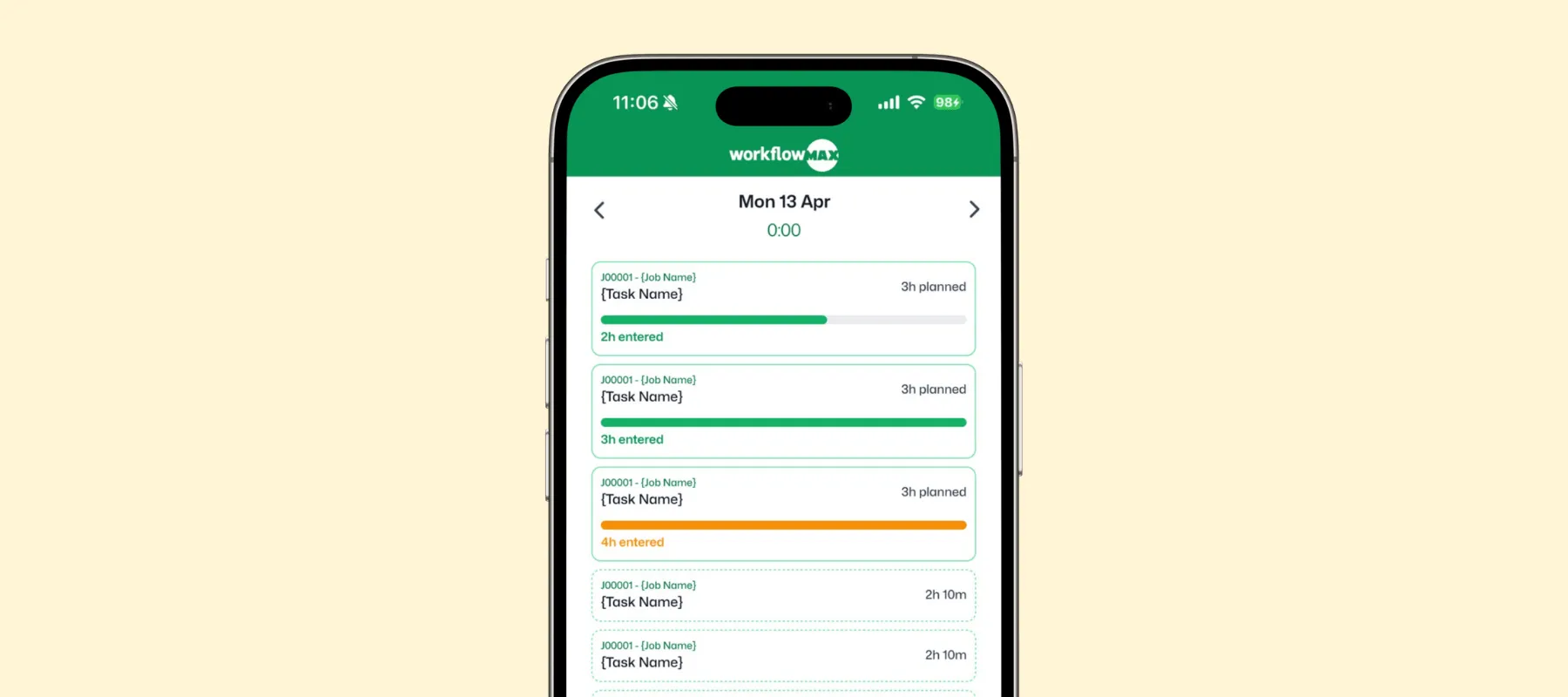
Yes. Team members can view their own schedule and see what they're expected to work on and when.

Who can view and edit the capacity planner?

Admins control access. View and edit permissions can each be set independently to own allocations, your team, or all staff – so team leads can plan for their team while only senior staff or PMs see the full picture.

Does planned time update automatically when timesheets are logged?

No – planned time is kept separate from actual timesheet entries. This keeps your planning view stable and predictable, so hours don't shift around as timesheets come in.

Can I plan at the job level or does it need to be task-level?

Both. You can allocate time to a whole job or to individual tasks within it, depending on how your team prefers to work.

How is this different from using a spreadsheet?

Spreadsheets can track allocations, but they don't update in real time, they can't show remaining capacity as timesheets come in, and they break the moment two people edit at once. More importantly, a spreadsheet sits outside the system where you track time and invoice clients – so planning never connects to profitability. Capacity Planning gives you a live, visual view of your team's workload inside the same platform that runs your jobs.

Unsure where to start?

From free online tutorials, to live demos from a specialised partner - get the help you need

SELF-PACED

One sentence here to explain who this plan is best for

1

Unlimited access

Unlimited access to the course so you can always go back and revisit things

2

Unlimited access

Unlimited access to the course so you can always go back and revisit things

3

Training

Role-specific staff training modules

GUIDED

One sentence here to explain who this plan is best for

1

Unlimited access

Unlimited access to the course so you can always go back and revisit things

2

Unlimited access

Unlimited access to the course so you can always go back and revisit things

3

Training

Role-specific staff training modules

4

Training

Role-specific staff training modules

PREMIUM

One sentence here to explain who this plan is best for

1

Unlimited access

Unlimited access to the course so you can always go back and revisit things

2

Unlimited access

Unlimited access to the course so you can always go back and revisit things

3

Training

Role-specific staff training modules

4

Training

Role-specific staff training modules

Additional features