Turn calendar events into accurate timesheets

Connect your Google or Microsoft calendar and instantly convert meetings into timesheet entries. Less admin, more accuracy.
Stop wasting time on manual timesheet entry.
Save time: convert meetings to timesheet entries in one click.
Stay accurate: use actual meeting durations, not guesswork.
Capture everything: never miss a billable hour.
Work faster: complete timesheets in minutes, not hours.
Three simple steps to better time tracking
Connect your calendar
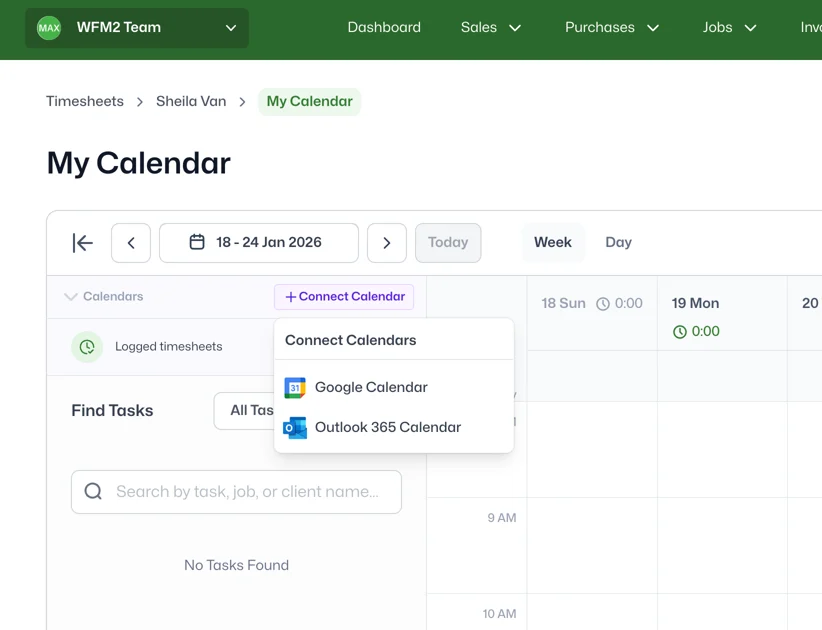
Open My Calendar in the Timesheets menu, click "Connect Calendar", and sign in to Google or Outlook. Less than 2 minutes. Multiple calendars supported.
View your events in WorkflowMAX
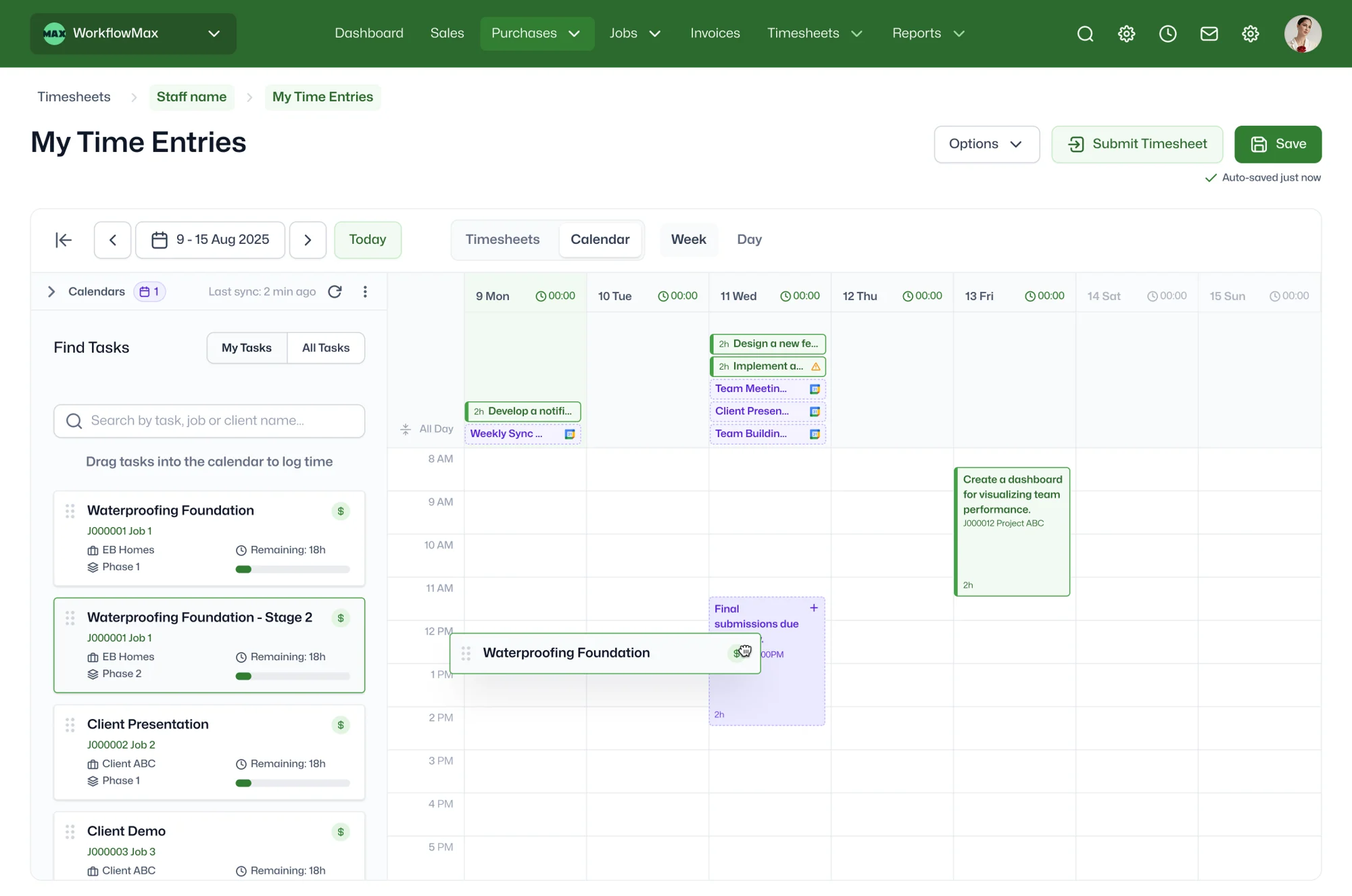
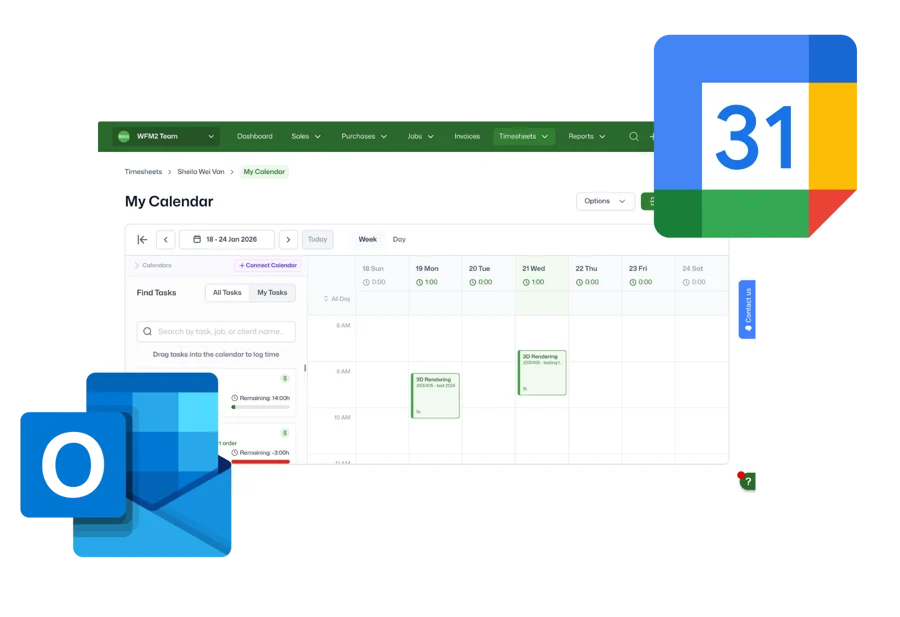
See all your calendar events inside WorkflowMAX. Your meetings appear next to your jobs, tasks, and projects. Everything in one view - no switching between apps.
Create timesheet entries
Click any event, select the job it relates to, and create the time entry. WorkflowMAX pulls the start time and duration directly from your calendar.
What calendars work with WorkflowMAX?
Works with the calendars your team already uses:
- Google Calendar
- Microsoft Outlook
You can connect multiple calendar accounts at once. All events show together in WorkflowMAX.
Who benefits from Integrated Calendar?
Teams that bill by the hour: Track every client meeting and billable hour accurately. Stop leaving money on the table.
Remote and hybrid workers: When your calendar is full of Zoom calls and virtual meetings, Integrated Calendar captures everything automatically.
Project managers: See client calls, team meetings, and deadlines alongside your jobs and tasks.
Anyone who struggles with timesheets: If you forget to log time or spend Friday afternoons reconstructing your week, this fixes that.
Ready to turn your calendar into your timesheet?
Integrated Calendar is available on a WorkflowMAX Advanced subscription. Start a free trial or upgrade to capture every billable hour.
Frequently asked questions
Which plans include Integrated Calendar?
Integrated Calendar is an Advanced plan feature. Not on Advanced yet? Start a free trial to test it out.
Can I connect more than one calendar?
Yes. Connect as many Google and Outlook calendars as you need – all events appear together in WorkflowMAX.
Will this change my actual calendar events?
No. WorkflowMAX only reads your calendar – it never modifies, deletes, or creates events in Google or Outlook.
Can other team members see my calendar?
No. You can only connect and view calendars for your own account. Your calendar stays private.
What if I have meetings that aren't work-related?
You choose which events to convert. Personal appointments stay in your calendar – no need to create entries for them.
How long does setup take?
Less than 2 minutes. Open My Calendar, click Connect Calendar, sign in, done.
Does my calendar sync automatically?
Yes. Once connected, your calendar events sync automatically. You'll see new and updated events in WorkflowMAX without needing to refresh.
What if a meeting runs longer or shorter than scheduled?
You can adjust the duration when creating the time entry. WorkflowMAX uses the scheduled time as a starting point – you're in control of the final entry.
Can I edit a time entry after creating it?
Yes. Time entries created from calendar events work like any other entry. Edit the duration, job, task, or notes as needed.
Do recurring meetings work?
Yes. Each instance of a recurring meeting appears as a separate event. Convert them individually to keep your timesheets accurate.
What information is pulled from my calendar?
Event title, start time, end time, and duration. You then select the job and task it relates to when creating the time entry.
Unsure where to start?
From free online tutorials, to live demos from a specialised partner - get the help you need
SELF-PACED
One sentence here to explain who this plan is best for
1
Unlimited access
Unlimited access to the course so you can always go back and revisit things
2
Unlimited access
Unlimited access to the course so you can always go back and revisit things
3
Training
Role-specific staff training modules
GUIDED
One sentence here to explain who this plan is best for
1
Unlimited access
Unlimited access to the course so you can always go back and revisit things
2
Unlimited access
Unlimited access to the course so you can always go back and revisit things
3
Training
Role-specific staff training modules
4
Training
Role-specific staff training modules
PREMIUM
One sentence here to explain who this plan is best for
1
Unlimited access
Unlimited access to the course so you can always go back and revisit things
2
Unlimited access
Unlimited access to the course so you can always go back and revisit things
3
Training
Role-specific staff training modules
4
Training
Role-specific staff training modules