Screenshot 2026-02-02 at 2.01.41 PM

Never Miss a Project Update Again

No more Monday morning scrambles to pull reports. Schedule Reporting delivers the right data to the right inboxes automatically so you can focus on the work, not the reporting.

Key Features

Flexible scheduling options

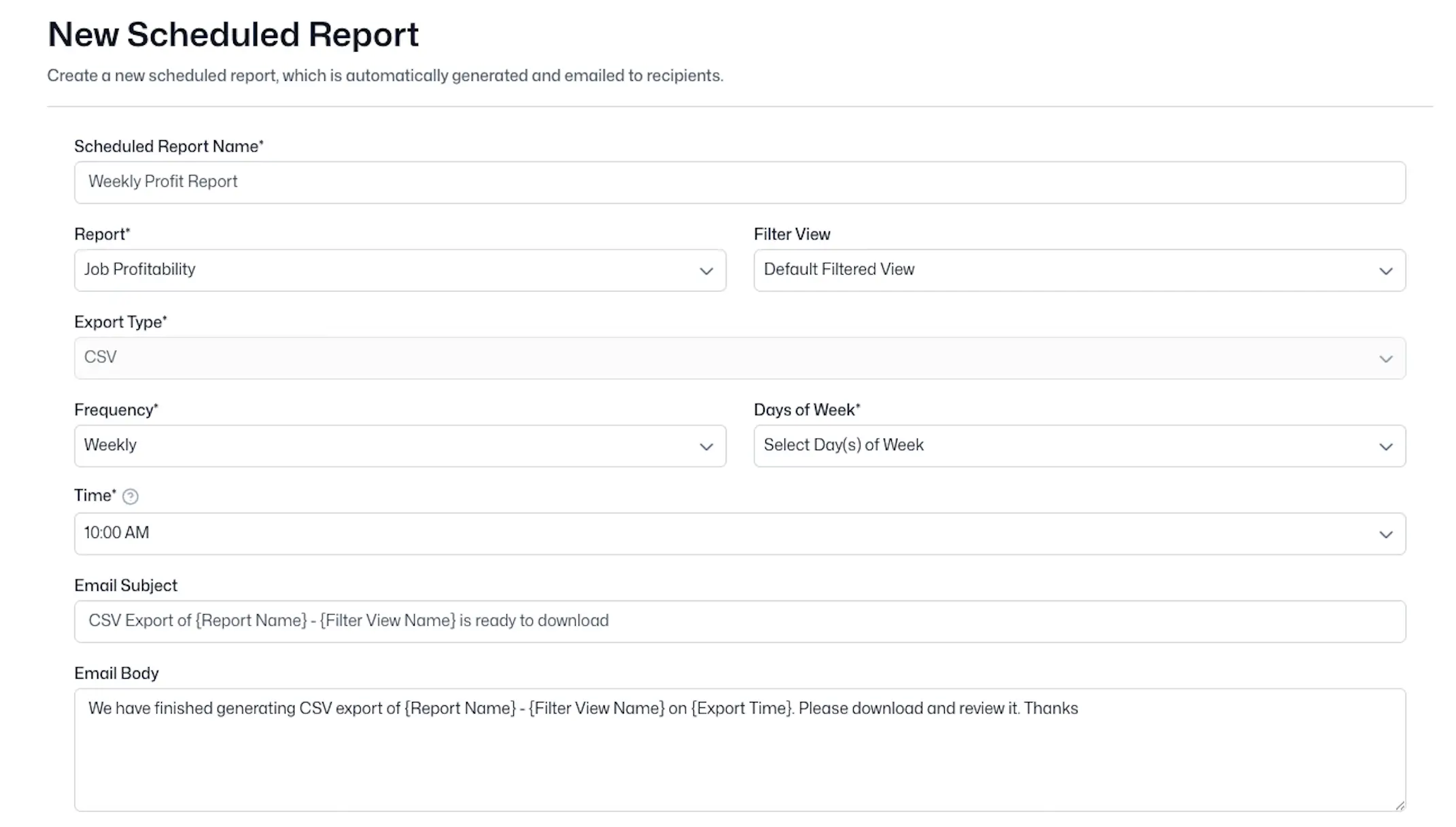
Choose from daily, weekly, monthly, or annual delivery schedules with customisable timing to match your team's workflow.

Filtered report views

Select pre-defined filtered report views filtered by job manager, date ranges, or custom criteria to send only the most relevant data.

Customisable email content

Personalise email subjects and body text with dynamic placeholders like report name, filtered view name, and generation time.

Team distribution

Send reports to multiple internal team members and staff simultaneously, ensuring everyone stays informed.

Centralised Management

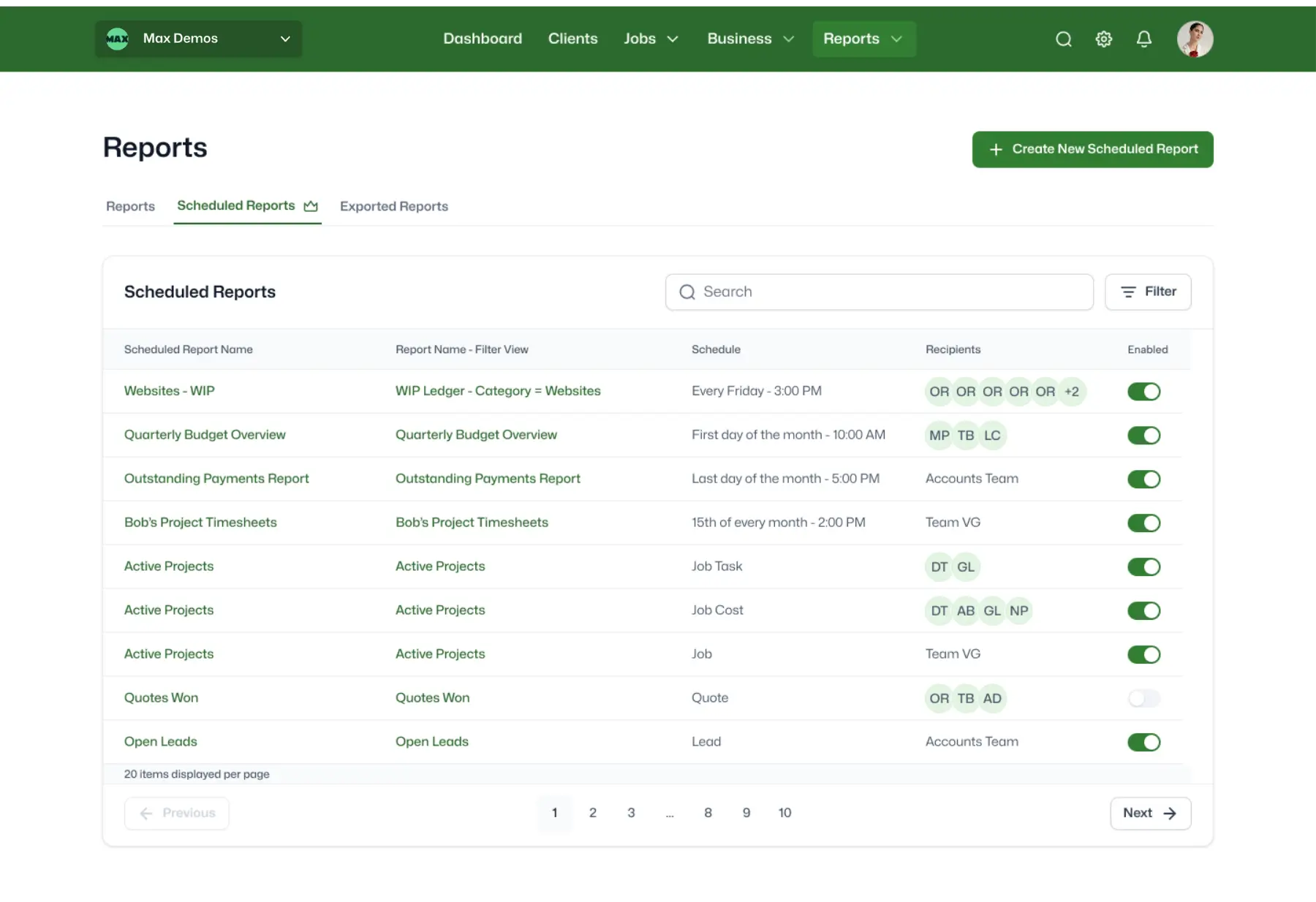
View all scheduled reports in one place, edit schedules, manage recipients, and disable reports as needed.

schedule report 3-1
schedule report 3

How It Works

1

Create your scheduled report

Name your report, select which WorkflowMAX report to automate, and specify the filter view.

2

Set your schedule

Choose your delivery frequency and timing that works for your team.

3

Add recipients

Select internal team members who should receive the report.

4

Customise your message

Write your email subject and body, using dynamic placeholders for personalisation.

5

Activate and forget

Your reports are delivered straight to your inbox with a secure download link - no login or manual steps required.

Common Use Cases

Weekly project updates

Monday 7 am: Every project manager has their job progress report waiting in their inbox. No chasing, no excuses.

Monthly financial reviews

1st of the month: Leadership wakes up to profitability reports ready for review.

Daily timesheet tracking

4 pm daily: Team leads see exactly who's at capacity before tomorrow's allocations.

Client billing preparation

Friday afternoon: Client-filtered reports land, ready for Monday invoicing.

dos-colegas-de-negocios-examinando-documentos-mientras-trabajan-juntos-en-la-oficina

Ready to automate your WorkflowMAX workflows?

Get started with Scheduled Reporting on Advanced plans today or start a free 14-day trial to see how automated reporting can save your team hours every week.

Frequently asked questions

Which reports can I schedule?

You can schedule any WorkflowMAX report with your preferred filters applied, including job reports, timesheet reports, and profitability reports.

Can I send reports to clients or external contacts?

Currently, scheduled reports can only be sent to internal team members and staff within your WorkflowMAX account. External recipient support is planned for a future update.

What file format are the reports delivered in?

Reports are currently delivered as CSV files, which can be opened in Excel, Google Sheets, or any spreadsheet application.

How long are the download links valid?

For security purposes, download links expire after three days. Recipients should download their reports within this timeframe.

Can I edit or pause a scheduled report?

Yes. You can edit schedules, add or remove recipients, or disable any scheduled report at any time from the centralised management view.


How do I enable Scheduled Reporting?

Scheduled Reporting is available for Advanced plan subscribers. Contact our support team to enable the feature, or start your free 14-day trial to test it out.

Unsure where to start?

From free online tutorials, to live demos from a specialised partner - get the help you need

SELF-PACED

One sentence here to explain who this plan is best for

1

Unlimited access

Unlimited access to the course so you can always go back and revisit things

2

Unlimited access

Unlimited access to the course so you can always go back and revisit things

3

Training

Role-specific staff training modules

GUIDED

One sentence here to explain who this plan is best for

1

Unlimited access

Unlimited access to the course so you can always go back and revisit things

2

Unlimited access

Unlimited access to the course so you can always go back and revisit things

3

Training

Role-specific staff training modules

4

Training

Role-specific staff training modules

PREMIUM

One sentence here to explain who this plan is best for

1

Unlimited access

Unlimited access to the course so you can always go back and revisit things

2

Unlimited access

Unlimited access to the course so you can always go back and revisit things

3

Training

Role-specific staff training modules

4

Training

Role-specific staff training modules

Additional features